



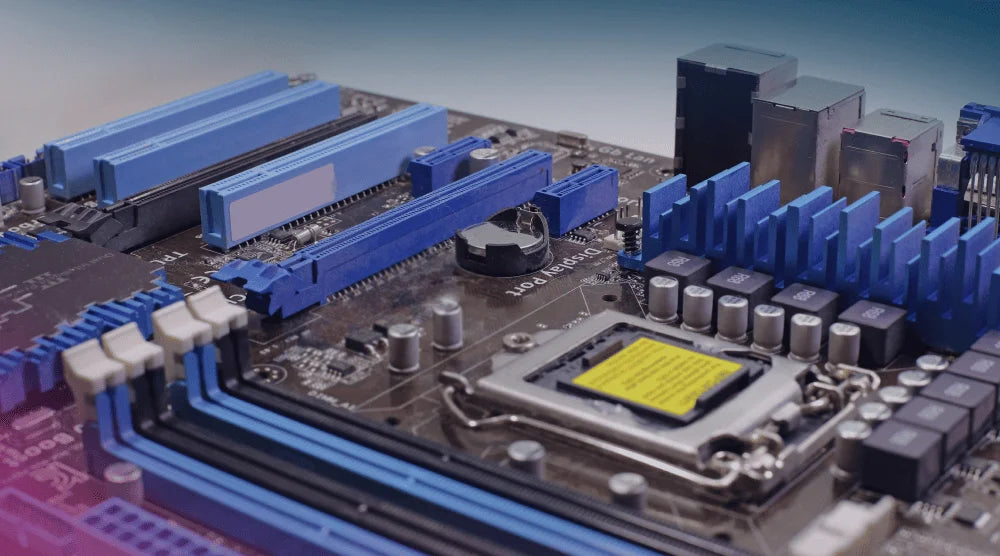
The main circuit board that holds your computer together is called the motherboard. It is the link between the CPU, RAM, storage drives, graphics card, power supply, and all of the essential devices within the PC. If it fails, the entire computer system may become unresponsive.
The difficult part is that a motherboard failure can manifest as other issues. Other issues that can cause problems include a bad power supply, loose RAM, a faulty GPU, or a corrupted BIOS.
This blog will explain how to know if motherboard is dead, what symptoms to look for, and when to repair or replace it.
What Does a Motherboard Do?
The motherboard is the central communication system of your computer. It allows the CPU to process data, RAM to handle temporary instructions, storage drives to load files, and the GPU to display graphics. It also distributes power from the PSU to connected components and ensures they all work together in sync.
In a high-performance gaming PC, the motherboard plays an even more important role by supporting high-performance hardware like powerful CPUs, high-speed RAM, NVMe SSDs, and dedicated GPUs, helping deliver smooth gameplay, faster load times, and stable performance under heavy gaming loads.
If key components such as circuits, capacitors, or the chipset are damaged, the system may fail to start, show no display, or fail POST (Power-On Self-Test). Because of this, motherboard issues usually affect the entire system rather than just one specific part, often leading to complete boot failure or system instability.
How to Know If Motherboard Is Dead: 5 Key Signs
1. No Power or No Response
The lack of response when you push the power button is the most apparent indication. The system makes no noise, has no LEDs illuminating, and has no fans spinning.
This may indicate a problem with the motherboard, but could also be caused by a power supply, power cable, wall outlet, or case power button issue. Don't assume the power delivery is to blame; test it first.
2. No Display Output
It's possible that the PC may start up, and the monitor will remain black. The fans are allowed to run, the lights may come on, but there is no display, etc.
This occurs when the motherboard fails to identify the RAM, the graphics card, or the CPU. If the POST process fails, it potentially prevents the system from getting to the BIOS. Test with another cable and monitor, then reconnect the graphics card and memory.
3. No Beep Codes or POST Signals
To signal hardware faults during boot, many motherboards include beep codes, debug LEDs, or little display codes. If your system has these features and you still don't receive any signal, the board might not be initializing.
If there is no POST activity, it may indicate serious hardware problems. But in some systems, you should connect a small speaker to the system in order for the beep codes to function, so check your manual before assuming the worst.
4. Random Shutdowns or Boot Loops
A failing motherboard can cause the computer to boot up and shut down repeatedly. May freeze before BIOS, restart during boot, or shut down without notice.
This can occur due to unstable circuits, damaged voltage regulators, overheating components, or a short circuit. But bad RAM or a weak PSU can also cause boot problems, so it's important to test each one.
5. Burnt Smell or Physical Damage
A burning smell close to the motherboard is a major warning sign. Other signs include burn marks, swollen capacitors, corrosion, and broken pins or liquid damage.
If damage is visible, do not turn on the computer. If a board is damaged, continuing to test it can damage the CPU, RAM, GPU, or storage drive.
How to Fix or Confirm If the Motherboard Is Dead
Step 1: Check Power Supply First
Test the PSU before replacing the board. Try a known working power supply or use a PSU Tester. Inspect the power cable, outlet, and rear PSU switch as well.
A problem with the PSU can cause a motherboard failure. This is one of the top reasons for the wrong part replacement.
Step 2: Remove and Reinstall Components
Unplug, power down, and ground the PC! Afterward, reinsert the RAM, GPU, power cables, and storage cables.
A loose RAM or a poorly seated graphics card may prevent the system from booting. Make sure that the 24-pin motherboard cable and the 8-pin CPU power cable are secure.
Step 3: Minimal Boot Test
To isolate the issue, a minimal boot test should be performed. Start with only:
- Motherboard
- CPU and cooler
- One RAM stick
- PSU
- Integrated or dedicated GPU
Unplug additional drives, USB peripheral devices, RGB controllers, and Expansion cards. If the PC is booted in this state, one of the removed parts is a problem.
Step 4: Clear CMOS
Clearing the CMOS will reset the BIOS settings. It can repair a failed boot configuration, an unstable overclock, or an incorrect hardware configuration.
The motherboard jumper or removing the coin-cell battery for a few minutes is typically used to clear CMOS. For general information, consult your motherboard's handbook or this Intel BIOS troubleshooting guide.
Step 5: Look for Physical Damage
Examine under good light. Inspect for broken traces, corrosion, bent CPU socket pins, broken ports, burn marks, and enlarged capacitors.
Unless a board is rare or high-quality, repairing physical damage is usually not worth the risk.
Motherboard Dead vs Other Component Failure
Knowing the distinction between a motherboard failure and other hardware issues can help you avoid unnecessary replacements and save money. A completely dead PSU typically results in a no-power situation, whereas bad RAM frequently causes beep codes, system lockups, or boot problems. A broken GPU can cause a black screen even if the computer is still functioning.
CPU failure can also stop the system from completing POST, although this is less common. To identify the real issue, test each component individually instead of replacing multiple parts at once.
When to Replace the Motherboard
Replacing a motherboard depends on the system’s age, repair cost, and hardware compatibility. If the motherboard shows signs of electrical damage, fails to boot even after testing with working components, or does not complete POST, replacement is usually the best option.
It may also be worth replacing the board if the PC is outdated or has limited upgrade support. In some cases, upgrading to a new motherboard, CPU, and RAM together can be more cost-effective and provide better long-term performance.
Prevention Tips
With simple care, you can minimize the risk of motherboard failure:
- Choose a high-quality PSU from a reputable brand.
- Use a UPS or surge protector to protect your motherboard from power fluctuations.
- Ensure dust is swept up to avoid overheating.
- Avoid unsafe overclocking.
- Keep liquid away from the PC (beer, soft drinks, coffee, hot drinks, water, etc.)
- Use anti-static handling parts when necessary.
- Install standoffs correctly to prevent motherboard short circuits.
Wrap Up
A dead motherboard can cause serious PC problems, from boot failures to random shutdowns and black screens. By identifying the warning signs early and testing each component carefully, you can determine whether the issue is with the motherboard or another part of the system.
In many cases, simple troubleshooting steps can save time and prevent unnecessary replacements.
For more expert guides, in-depth troubleshooting tips, as well as buying high-performance prebuilt gaming PCs, business PCs, and fully custom PC builds, visit TechWhiz Inc. today and explore solutions built for performance, reliability, and your exact needs.
People Also Ask
How to know if the motherboard is dead or the PSU is faulty?
A PSU tester can be used to evaluate the power supply unit (PSU), or you can replace it with a known working PSU.
The original PSU is probably defective if the system turns on properly with a different PSU. The motherboard might be the cause if the problem continues despite a reliable power supply.
Is it possible to fix a dead motherboard?
Sometimes, but repairing is typically only feasible for minor capacitor or port problems. In many cases, replacement is safer in the event of extensive burn damage.
Why do motherboards fail?
These are typically due to power surges, overheating, dust, liquid damage, incorrect installation, aging components, and low-quality power supplies.
How long does a motherboard usually last?
With proper care, stable power, and good cooling, a motherboard typically lasts around 5–10 years, though this can vary depending on usage and build quality.
Is it worth replacing a motherboard in an old PC?
The system's state and upgrade goals are the determining factors. If the computer is too old, it might not be worthwhile just to change the motherboard. Upgrading the motherboard, CPU, and RAM offers greater long-term benefits.


