



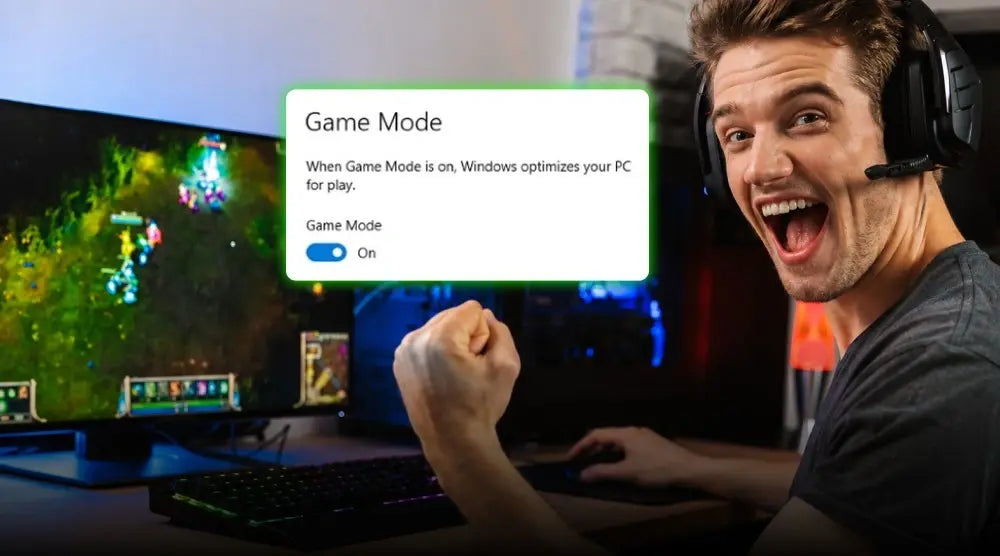
If you’ve ever adjusted your gaming PC settings, you’ve likely seen Windows Game Mode.
This built-in Microsoft feature aims to boost system performance during games. Even though it’s been around for years, many gamers still question if it really helps.
Gamers often ask, "Does Windows Game Mode increase FPS?" or "Should I turn it on or off?" Some people say it helps, while others think it doesn’t matter much on newer PCs.
The truth lies somewhere in between. Windows Game Mode can help certain systems perform more consistently, but its benefits depend on your hardware, the games you play, and what else is running in the background.
This guide covers what it is, how it works, when it can help, and if it’s worth using for gaming in 2026.
What Is Windows Game Mode?
Microsoft introduced Game Mode to improve gaming performance by prioritizing active games' access to system resources.
Game Mode first appeared in Windows 10 and was improved in Windows 11. It helps games run more smoothly and reduces interruptions, all without needing you to tweak system settings yourself.
Today, Windows Game Mode is a standard feature in supported versions of Windows and can be turned on or off with just a few clicks.
What Does Windows Game Mode Do?
One of the most common questions gamers ask is “What does Windows Game Mode do behind the scenes?”
When enabled, Game Mode attempts to:
- Prioritize active gaming processes.
- Reduce interruptions from notifications.
- Prevent certain Windows Update activities during gameplay.
- Allocate system resources more efficiently.
- Improve performance consistency in supported games.
Instead of giving a huge performance boost, Game Mode mainly helps your system stay responsive during games.
How Windows Game Mode Works
Resource Prioritization
- Game Mode mainly changes how Windows manages system resources.
- When you start a game, Windows can give it priority over other background tasks.
- This helps reduce competition for your CPU and makes your system more responsive.
- Game Mode also tries to limit background tasks that could get in the way of your gaming.
Integration with Windows Gaming Features
Game Mode works together with other Windows gaming features, including:
- Xbox Game Bar
- Graphics performance settings
- Hardware-accelerated GPU scheduling
- DirectX optimizations
All these tools help make Windows more gaming-friendly, and you don’t need to install anything extra.
Does Windows Game Mode Increase FPS?
The Impact on Gaming Performance
A common myth is that Game Mode always gives you higher frame rates.
In reality, it depends on your system.
- Older and mid-range PCs usually see the biggest benefits, since they have fewer resources. Cutting down on background activity can free up more power for your games.
- On high-end systems, FPS gains are usually small because these PCs already have plenty of resources.
Factors That Affect Results
Several variables influence whether Game Mode improves performance:
- CPU and GPU capabilities
- Available memory
- Number of background applications running
- Game optimization
- Storage speed
That’s why some people see real improvements, while others barely notice a change.
Does Windows Game Mode Reduce Background Processes?
What Gets Prioritized
Many gamers also ask whether Game Mode reduces background processes.
The short answer is yes, but only to a certain extent.
When active, Windows may:
- Prioritize game-related tasks.
- Reduce resource allocation for some background services.
- Minimize interruptions from notifications.
- Delay non-essential system activities.
This can make gaming more stable, especially on PCs with limited hardware.
What It Doesn't Do
It’s good to know what Game Mode can’t do.
Game Mode does not:
- Completely turn off all background programs.
- Remove malware or unwanted software.
- Replace proper PC maintenance.
- Perform miracles on outdated hardware.
If your PC has trouble running new games, upgrading your hardware will help much more than just turning on Game Mode.
Should I Turn Game Mode On or Off?
Benefits of Keeping It Enabled
It can be particularly useful for:
- Competitive online gaming
- Mid-range gaming PCs
- Systems with multiple applications running
- Streaming while gaming
- Older hardware configurations
Since Game Mode requires little effort to use, many players prefer to keep it active at all times.
When You Might Turn It Off
Sometimes, it makes sense to turn Game Mode off.
Some users turn it off when:
- Troubleshooting game-related issues.
- Running performance benchmarks.
- Testing hardware configurations.
- Investigating software conflicts.
It’s rare, but some apps might act differently when Game Mode is on.
How to Enable or Disable Windows Game Mode
On Windows 10 and 11
- Open Settings
- Select Gaming
- Click Game Mode
- Toggle Game Mode on or off
After changing the setting, launching a game automatically applies the selected behaviour.
Additional Tips to Improve Gaming Performance on Windows
Update Graphics Drivers
Driver updates often include performance improvements and bug fixes for newly released games.
Optimize Graphics Settings
Lowering demanding visual settings such as ray tracing, shadows, or reflections can significantly improve frame rates.
Use an SSD for Games
Installing games on an SSD reduces load times and improves overall responsiveness.
Close Unnecessary Applications
Background software can consume valuable system resources. Closing unused applications before gaming can help improve performance.
Enable Hardware-Accelerated GPU Scheduling
Supported systems may benefit from enabling this Windows feature to improve GPU workload management.
Conclusion
Game Mode isn't a magic solution for gaming performance, but it does serve a useful purpose. Prioritizing gaming workloads and reducing certain background activities can help create a smoother, more consistent experience on many PCs.
Whether you're using an older gaming rig or a modern system, it's worth experimenting with the feature to see how it performs on your hardware. Since it's free, built directly into Windows, and easy to enable, there's little downside to trying it.
For more related performance optimization guides, prebuilt gaming PCs, and custom PC builds, visit TechWhiz Inc. today and take your gaming experience to the next level.
People Also Ask
Can Windows Game Mode improve input lag?
Windows Game Mode may slightly reduce input lag by prioritizing game processes and limiting background activity.
However, factors like your monitor, peripherals, and hardware have a much greater impact on input responsiveness.
Does Windows Game Mode work with all PC games?
Game Mode works with most games running on Windows 10 and Windows 11, including titles from Steam, Epic Games Store, Xbox, and other launchers.
The performance improvement, however, varies depending on the game and your system specifications.
Will Windows Game Mode affect streaming or screen recording?
Game Mode is generally compatible with streaming and screen recording software. On resource-constrained systems, performance may vary when multiple applications are running simultaneously.
Can Windows Game Mode improve laptop gaming performance?
Yes. On gaming laptops and mid-range systems, Game Mode can help improve performance consistency by reducing background activity.
Does Windows Game Mode consume more system resources?
No. Windows Game Mode is a lightweight feature built into Windows and uses very few additional system resources. Its primary purpose is to optimize the allocation of existing CPU and GPU resources during gameplay.


