



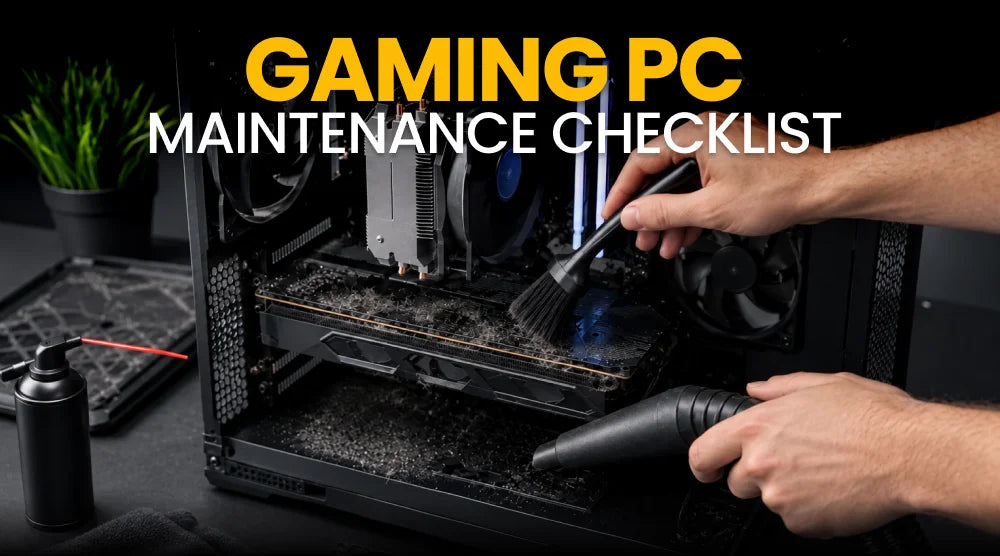
A gaming PC can deliver excellent performance for years, but even powerful hardware needs some attention.
Dust, rising temperatures, unnecessary background programs, outdated drivers, and a nearly full SSD can gradually affect how your system performs.
That is why Gaming PC Maintenance should be part of your regular routine, not something you think about only when a problem appears.
The good news is that maintenance does not have to be complicated. A few quick checks each day, some cleaning and software management each month, and a more thorough inspection once a year can go a long way.
This Gaming PC Maintenance Checklist breaks everything down into simple daily, monthly, and yearly tasks.
Daily Gaming PC Maintenance Checklist
You do not need to spend 30 minutes maintaining your PC every day. Most daily checks take only a few moments.
Check for Unusual Temperatures and Fan Noise
Pay attention to how your PC sounds and behaves while gaming. Fans will naturally become louder under heavy workloads, but a sudden change in fan noise or temperatures is worth investigating.
If your PC is consistently running much hotter than usual, check whether vents are blocked, fans are spinning properly, or a background application is consuming unusual CPU resources.
Close Unnecessary Background Applications
Before launching a demanding game, close programs you do not need. Browsers with dozens of tabs, video editors, launchers, and other applications can consume RAM and CPU resources.
You do not need to close every background process you see in Windows. Focus on applications you recognize and no longer need.
Check for Performance Issues During Gaming
Notice changes rather than obsessing over individual FPS numbers. Sudden stuttering, unusual frame-time spikes, crashes, or major performance drops can indicate a software or hardware issue.
If a game that normally runs smoothly suddenly struggles, check recent driver updates, temperatures, background applications, and available storage before assuming that your hardware has failed.
Shut Down or Sleep Your PC Appropriately
You do not have to shut down your gaming PC after every short break. Sleep mode can be convenient when you return soon. If you are finished for the day, however, shutting down the system is perfectly reasonable.
The important thing is to avoid forcing the PC off by holding the power button unless the system has completely frozen and normal shutdown is unavailable.
Monthly Gaming PC Maintenance Checklist
A monthly routine gives you enough time to catch problems that may not be obvious during everyday use.
Clean External Surfaces and Dust Filters
Wipe the outside of the case with a suitable microfiber cloth and inspect the dust filters. If your case has removable filters, clean them according to the manufacturer's recommendations.
Dust filters are especially important because they help reduce the amount of dust entering the case while maintaining airflow.
Review CPU and GPU Temperatures
Check your CPU and GPU temperatures during normal gaming sessions.
Look for changes from your usual readings rather than relying on one universal temperature number. A temperature that is acceptable for one component or workload may not tell you much about another.
Consistently abnormal readings should be investigated instead of ignored.
Update Graphics Drivers and Essential Software
Your monthly gaming PC maintenance checklist should include checking for graphics driver updates and important software updates.
You do not necessarily need to install every optional update immediately. For your GPU, use the manufacturer's official driver source. NVIDIA provides official Game Ready and Studio drivers through its driver platform.
Check Available Storage Space
Open your storage settings and see how much free space remains on your SSD or hard drive.
Large modern games can consume significant amounts of storage. Remove games you no longer play, temporary files you do not need, or other unnecessary data.
Avoid deleting unfamiliar system folders simply because they look large.
Review Startup Programs
Too many applications launching with Windows can increase startup time and keep unnecessary software running in the background.
Review your startup applications periodically, and turn off programs you don't need to launch automatically.
Check System Security
Make sure Windows Security or your chosen reputable security solution is active and receiving updates. Avoid suspicious downloads, unofficial software activators, and unknown optimization utilities.
A gaming PC performs best with proper hardware and software management, not questionable optimization tools promising instant performance boosts.
Yearly Gaming PC Maintenance Checklist
Your yearly gaming PC maintenance checklist should be more thorough than your monthly routine.
Perform a More Thorough Dust Inspection
Once or twice a year, depending on your environment, inspect the inside of your PC for accumulated dust.
Dust levels can vary significantly depending on pets, carpeting, room conditions, and how often the PC is cleaned externally.
Always shut down the PC, disconnect it from power, and follow safe cleaning procedures before opening the case.
Inspect Cooling System Performance
Check that case fans, CPU coolers, and other cooling components are working properly.
Listen for unusual bearing noise or rattling and inspect whether fans are moving normally.
For liquid cooling systems, also look for unusual pump noise or visible signs of leakage. If something looks abnormal, stop using the system until the issue has been properly assessed.
Evaluate Thermal Paste Only When Necessary
If temperatures remain normal and your cooler is functioning properly, there is usually no reason to replace it simply because a certain amount of time has passed.
Consider replacement when a cooler is removed, temperatures have changed significantly, or the manufacturer or technician recommends it.
Review Hardware Health
Take a broader look at your system. Check SSD health where supported, monitor temperatures, listen for unusual noises, and investigate repeated crashes or freezes.
If your PC has started struggling with games you previously played comfortably, determine whether the issue is software, thermals, or simply newer games becoming more demanding.
Review Backup and Recovery Options
A gaming PC may contain more than games. Save files, photos, work projects, recordings, and other important documents can be difficult or impossible to replace.
Maintain a backup of important files on a separate drive or reliable cloud storage service. Also make sure you know how to recover your Windows installation if something goes seriously wrong.
Assess Whether an Upgrade Is Necessary
Maintenance is not always about buying new hardware. However, a yearly review is a good time to ask whether your current PC still meets your needs.
If you consistently run out of RAM, storage, or GPU performance, an upgrade may make more sense than replacing the entire system.
Common Gaming PC Maintenance Mistakes to Avoid
Even well-intentioned maintenance can cause problems if done incorrectly. Avoid these common mistakes to keep your gaming PC safe and running smoothly.
- Opening or cleaning your PC while it is connected to power.
- Using a household vacuum directly on sensitive internal components.
- Allowing fans to spin freely under strong compressed-air blasts during cleaning.
- Replacing thermal paste unnecessarily.
- Installing unofficial drivers or questionable system optimization software.
- Ignoring repeated crashes, abnormal temperatures, or unusual mechanical noises.
- Deleting system files without understanding their purpose.
When cleaning with compressed air, use short, controlled bursts and prevent fans from spinning excessively.
Essential Tools for Gaming PC Maintenance
You do not need an expensive toolkit for PC maintenance. A basic setup can include:
- A microfiber cloth for appropriate external cleaning.
- Manufacturer-approved cleaning supplies or suitable compressed air.
- Screwdriver compatible with the PC case.
- Temperature and hardware-monitoring utilities.
- Built-in storage and security tools.
- A reliable backup destination for important files.
Keep these tools together so routine maintenance is easy instead of becoming a task you keep postponing.
Wrap Up
Keeping your gaming PC in good condition doesn't have to be complicated.
Following a simple daily, monthly, and yearly PC maintenance checklist can help prevent overheating, maintain performance, and extend your system's lifespan.
If your PC is outdated and struggles to handle modern games, it may be time to consider an upgrade. Explore the prebuilt gaming PC collection at TechWhiz Inc. to find a system that suits your gaming needs.
People Also Ask
How do I know if my gaming PC is overheating?
Common signs include unusually high temperatures, loud fans, sudden FPS drops, thermal throttling, and unexpected crashes. Monitor CPU and GPU temperatures to identify potential cooling issues.
Should I leave my gaming PC on all the time?
No, you don't need to leave your gaming PC running constantly. Use Sleep mode for short breaks and shut it down when you finish gaming for the day.
How often should I update my graphics drivers?
Check for graphics driver updates regularly, especially before playing newly released games. Install stable updates to benefit from game optimizations, bug fixes, and performance improvements.
How often should gaming PC thermal paste be replaced?
Thermal paste doesn't require annual replacement. Replace it when temperatures become unusually high, the cooler is removed, or the manufacturer recommends it.
How long can a gaming PC last with proper maintenance?
A well-maintained gaming PC can last 5–8 years or longer, depending on hardware quality, usage, cooling, and upgrades. Regular maintenance helps extend component life and maintain reliable performance.


